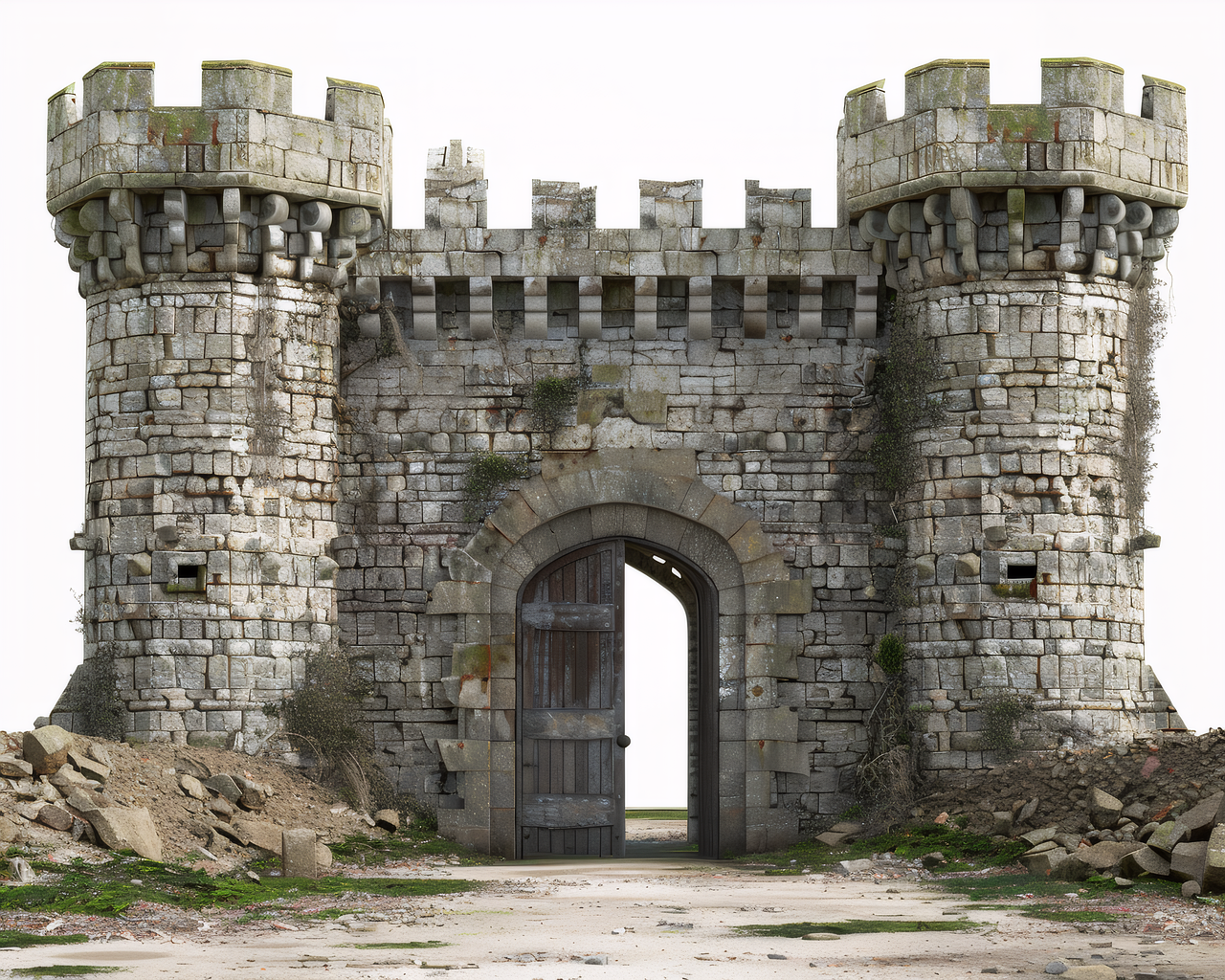
 Input
InputEnvironment Asset
Blender editExport as OBJ when you want to separate pieces, simplify surfaces, adjust scale, or prepare an environment prop for rendering.
Upload a clear image, generate a 3D mesh preview, and unlock OBJ export for Blender, Maya, Unity, Unreal, or cleanup before STL.
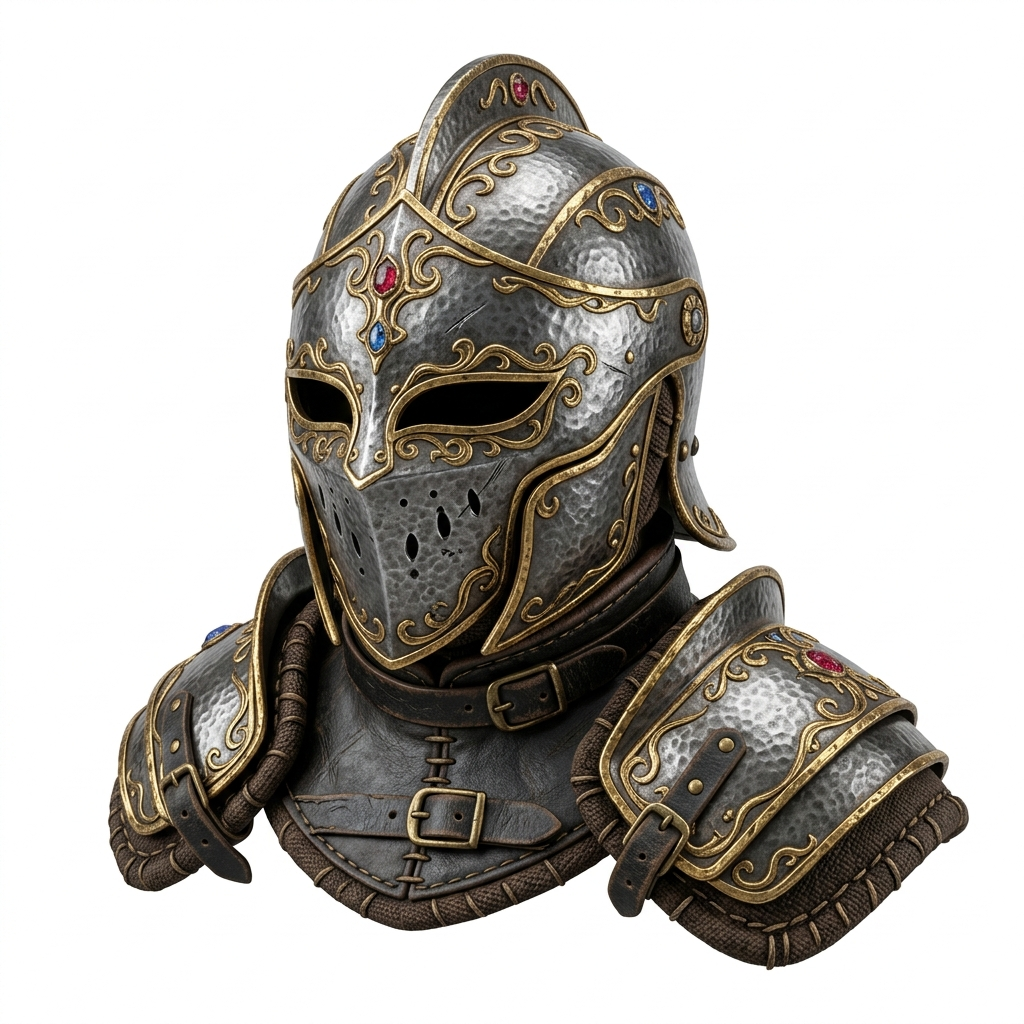 Input image
Direct answer
Yes. Image3D can generate a real 3D mesh from a single image and preview it in the browser before you unlock OBJ export for Blender, Maya, Unity, Unreal, or other 3D editors. OBJ is best when you want an editable mesh, separate material files, and a workflow that can be cleaned up or converted before final delivery.
Example outputs
These examples show the kind of assets you can export as OBJ for Blender, Maya, Unity, Unreal, or cleanup before STL conversion.
InputExport as OBJ when you want to separate pieces, simplify surfaces, adjust scale, or prepare an environment prop for rendering.
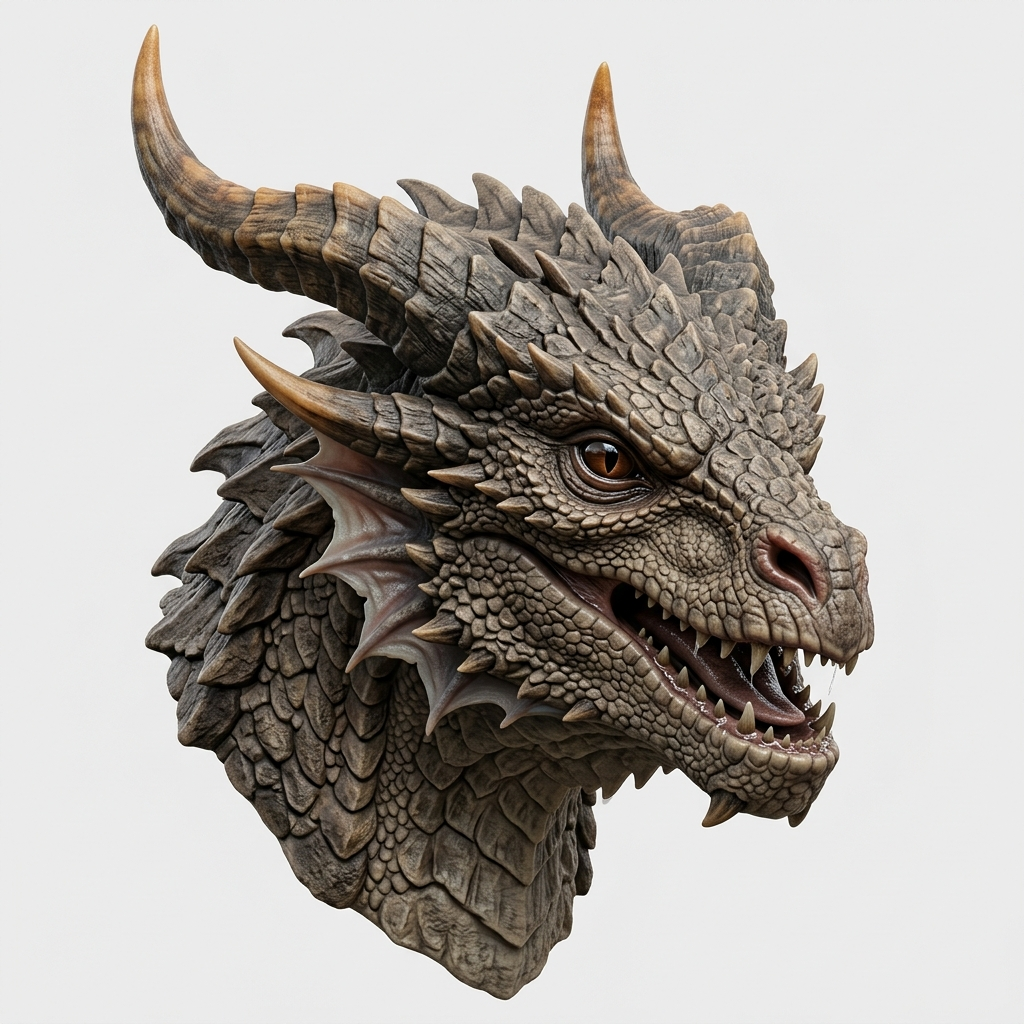 Input
InputOBJ is useful when scale texture, horns, teeth, and sculpted surface detail need cleanup before a GLB or STL handoff.
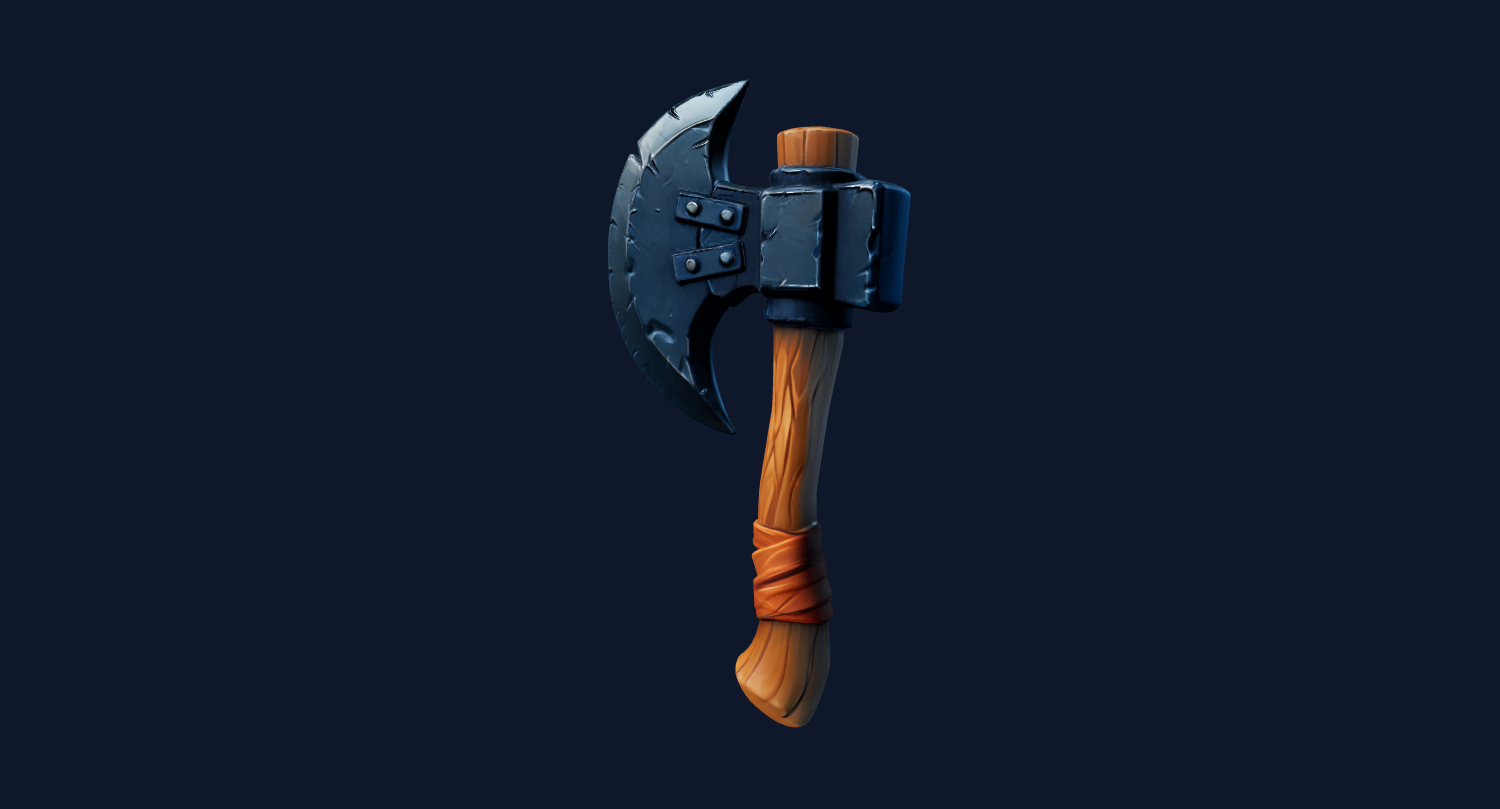 Input
InputExport OBJ for retopology, material cleanup, collision setup, and later conversion into a game-ready asset pipeline.
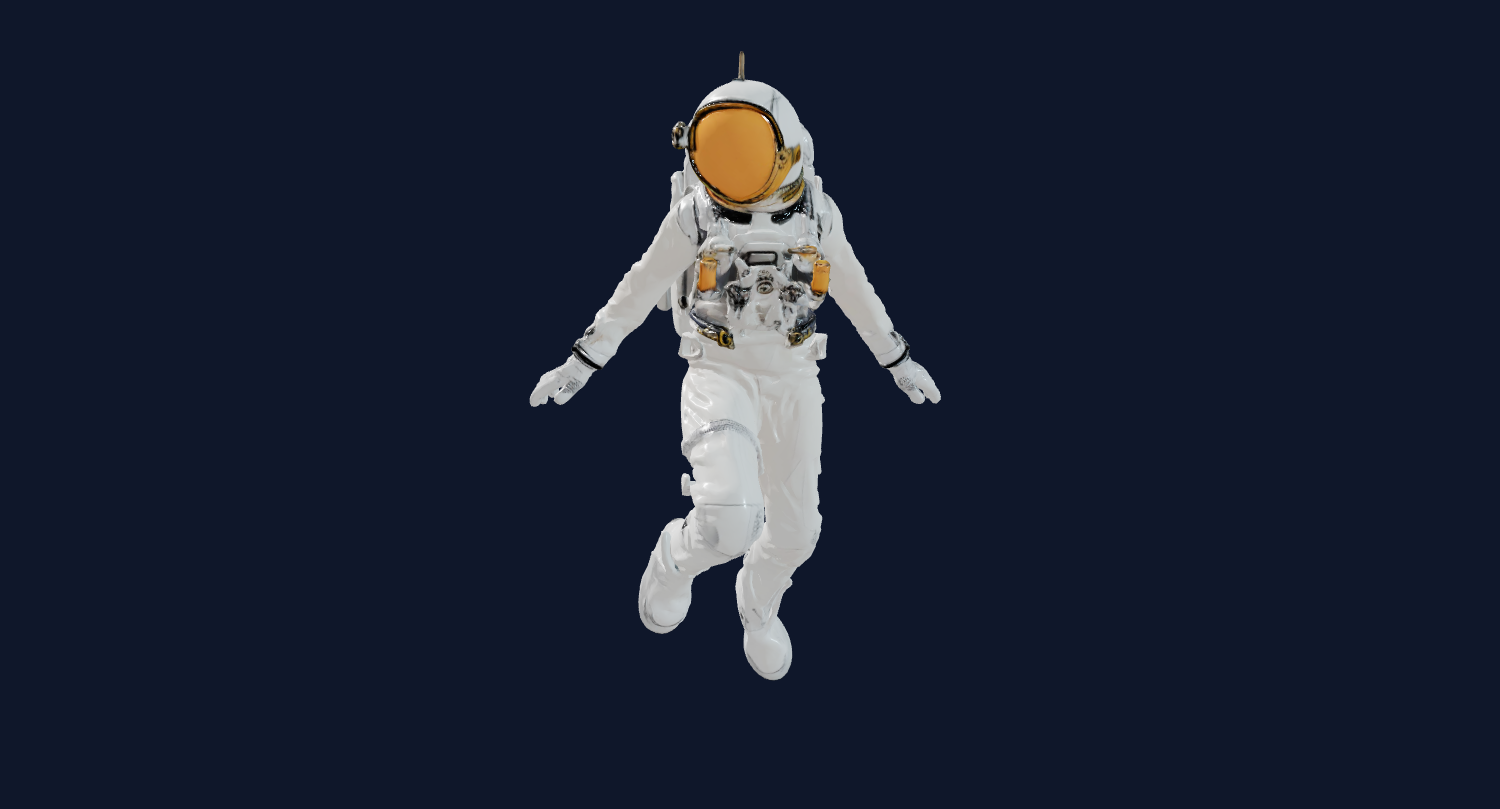 Input
InputOBJ gives you an editable starting point for smoothing seams, separating accessories, adjusting origin, or preparing the model for printing.
Create a base mesh from a reference image, then sculpt, repair, retopologize, or render it.
Generate prop or character drafts for Unity, Unreal, Godot, or a DCC cleanup workflow.
Convert product photos or concept renders into editable 3D assets for visualization.
Use OBJ as an intermediate format before repairing and exporting STL for slicer review.
An image to OBJ generator uses AI to infer 3D geometry from a 2D PNG or JPG, then exports the generated mesh as a Wavefront OBJ file. OBJ is a widely supported interchange format used by Blender, Maya, 3ds Max, Cinema 4D, Unity, Unreal Engine, and many other 3D tools.
The OBJ format is useful because it separates mesh geometry, materials, and textures. A typical export includes a `.obj` file for geometry, a `.mtl` file for material references, and one or more texture images. That file structure is less compact than GLB, but it is easier to inspect and edit.
Choose OBJ when you plan to modify the model after AI generation. If you only need a compact textured file for web display, use GLB. If your next step is a slicer, use STL after checking the mesh.
If you need mesh cleanup, sculpting, retopo, or UV edits, OBJ is usually better than GLB.
OBJ uses external texture files, so keep the OBJ, MTL, and images together when importing.
Blender, Maya, Unity, Unreal, and most DCC tools support OBJ, but material behavior can vary.
Use OBJ for editing, GLB for web/AR, and STL for slicer inspection and 3D printing.
OBJ export path
Use free or low-cost credits to check whether the image creates a coherent shape.
Rotate the model and look for broken silhouettes, missing parts, or material issues before export.
Download OBJ, MTL, and textures only when the preview is worth editing in Blender or another 3D tool.
For printable output, export STL after the shape is usable and still check it in a slicer. For web or AR, GLB is usually the easier one-file format.
| Output | What downloads | Best use |
|---|---|---|
| OBJ | `.obj`, `.mtl`, texture images | Blender, Maya, Unity, Unreal, editing and cleanup. |
| GLB | Single binary file | Web 3D, AR, sharing, embedded previews. |
| STL | Geometry-only mesh | Cura, PrusaSlicer, Bambu Studio, print checks. |
| PLY | Mesh or point-style data | Research and specialized workflows. |
Use Standard for fast shape tests and low-cost iteration. It is useful when you only need to see whether the image produces a coherent mesh.
10 credits, quickest preview.
Use Pro for most editable OBJ exports. It balances cost, texture quality, and mesh detail for Blender and game prototypes.
100 credits, best default.
Use Ultra when you need a high-detail hero asset, close-up render, or more geometry for manual cleanup.
350 credits, highest detail.
Upload a clear prop image, generate with Pro, export OBJ, and import into Blender. Keep the MTL and texture files in the same folder, then inspect the mesh in Edit Mode before adding materials or lighting.
Use a product photo on a white background to create a quick visualization model. Export OBJ if your next step is cleanup, scale adjustment, or material editing in a 3D editor.
Generate a mesh from an AI image, export OBJ for Unity or Unreal, then create colliders, reduce polygon count, and build LODs before using it in a playable scene.